
How guests join and listen
Your guests don't download anything or make an account. They open one link on the phone already in their pocket, tap their language, and follow the service live — in captions, spoken audio, or both. Here's exactly what they see, so you can help anyone who asks.
1. Joining — scan or tap a link
Guests join one of two ways: scan the QR code shown on the screen (or printed in the bulletin), or open the short link you share by text or email. Either one opens the listener page right in their phone's browser — there is no app to install and no sign-in.
2. The lobby — pick your language
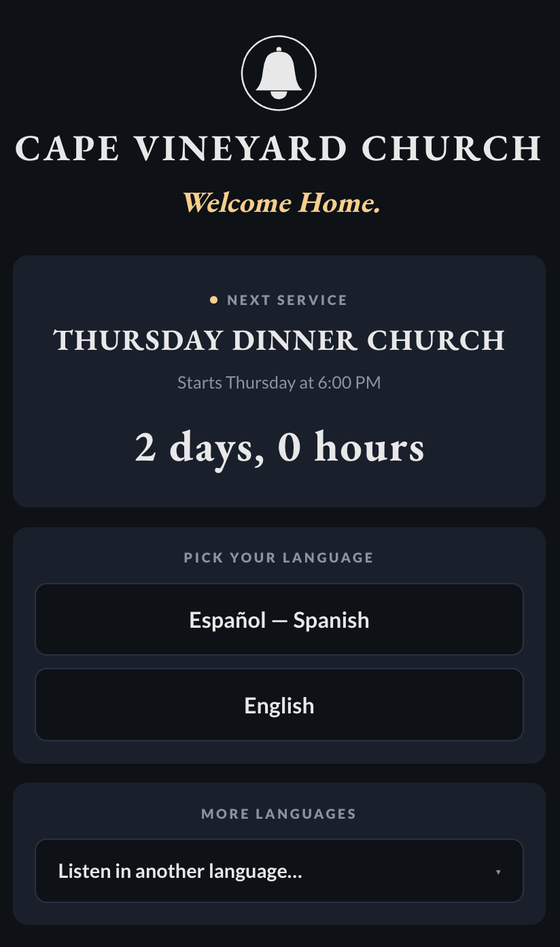
Before the service begins, guests land in the lobby. It shows your church's name and branding, a countdown to the next service, and any welcome announcements you've set (these rotate on their own).
- Pick your language lists your most common languages as one-tap buttons (for example, Español — Spanish and English).
- More languages opens a "Listen in another language…" dropdown with the full list, so anyone can find theirs even if it isn't a headline button.
That one tap is the only choice a guest has to make. Everything after is automatic.
3. During the service — the translation page
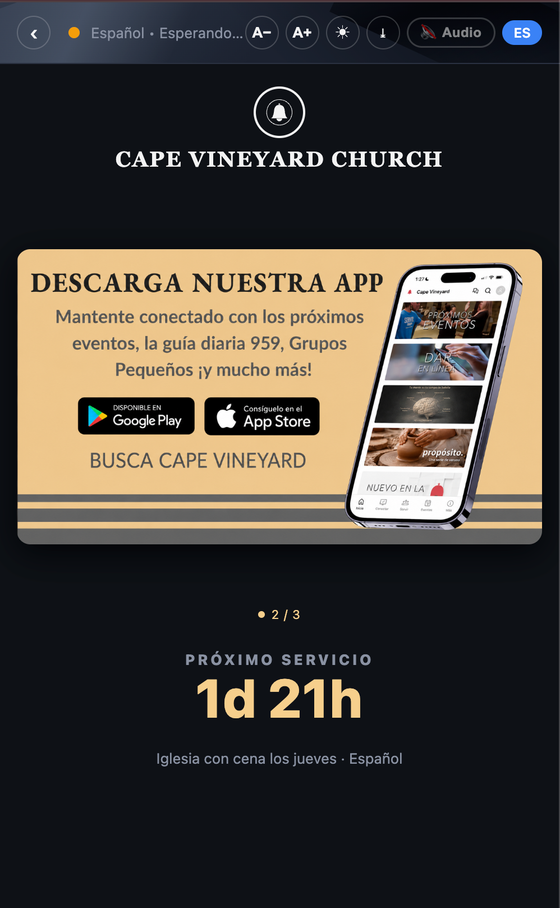
Once you go live, the page switches from the lobby to the live view in the guest's chosen language. Here's what's on it:
- Live captions appear as you speak — complete, natural sentences in their language, not broken fragments.
- Spoken audio — guests can turn on a translated voice and listen with earbuds while they read along. The audio keeps playing even with the screen locked, so they can put the phone in a pocket.
- Text size — the A− / A+ buttons make captions larger or smaller for easy reading.
- Translated announcements & decision cards — when you push a slide or a response moment from the console, it appears right here in the guest's language.
- A small label shows which language they're in, so it's easy to confirm or switch.
What to tell your guests
- Join early. Scan the QR during the welcome so you're in before the message starts.
- Bring earbuds if you want to hear the translation, not just read it.
- Keep the tab open. Leaving the page closes the session; reopen the link to rejoin.
- It's private. No name, login, or download is required to listen.
For the booth side of all this — going live, pushing announcements, managing languages — see using the broadcast console.